 openLN
Guides / POS
openLN
Guides / POS
How to add, edit, and remove POS items
The POS pad shows one tile for each thing you sell, and those tiles come from your account's item list. Build the list once and it is there on every device you sign in to. This guide adds a Cola as the example, then shows how to change a price or a name and how to remove an item later.
- You are signed in to your openLN account with the POS page open. The pad can be empty or already full; the flow is the same.
- A connected wallet is not needed to build the list, and nothing here charges anyone. Sales pay straight into the wallet you connect, and openLN never takes custody of your sats.
- It helps to know your prices and, for the price field, your account's currency (US dollars in these screenshots).
Open the Items dialog and press Add item
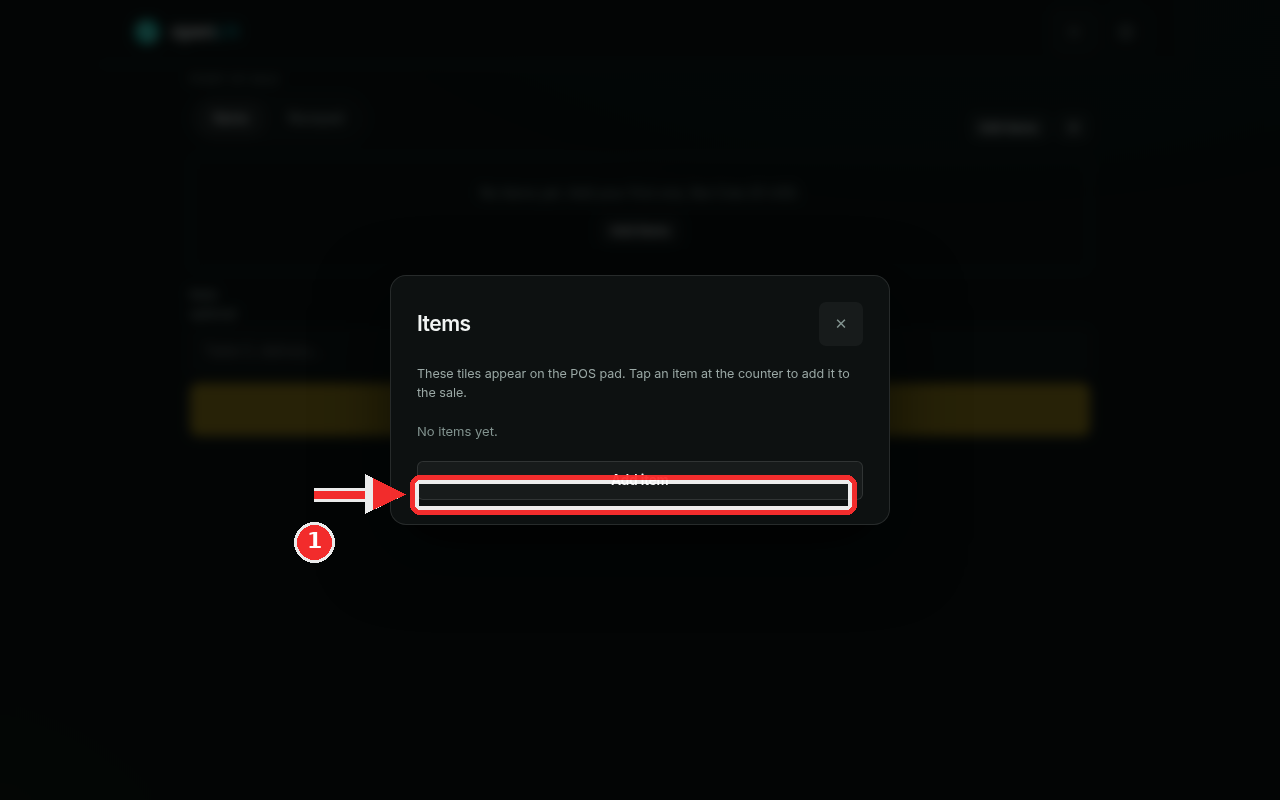
On the POS page, tap Edit items at the top right, next to the gears. If your pad is still empty, the same dialog opens from the Add items button in the middle of the screen. This is the Items dialog, and it explains its own purpose at the top: "These tiles appear on the POS pad. Tap an item at the counter to add it to the sale." That sentence is the whole idea: one tile per thing you sell, tapped at the counter to put it into the current sale. On a fresh account the list just says "No items yet." Press Add item at the bottom of the dialog to create your first one.
Fill in the New item form
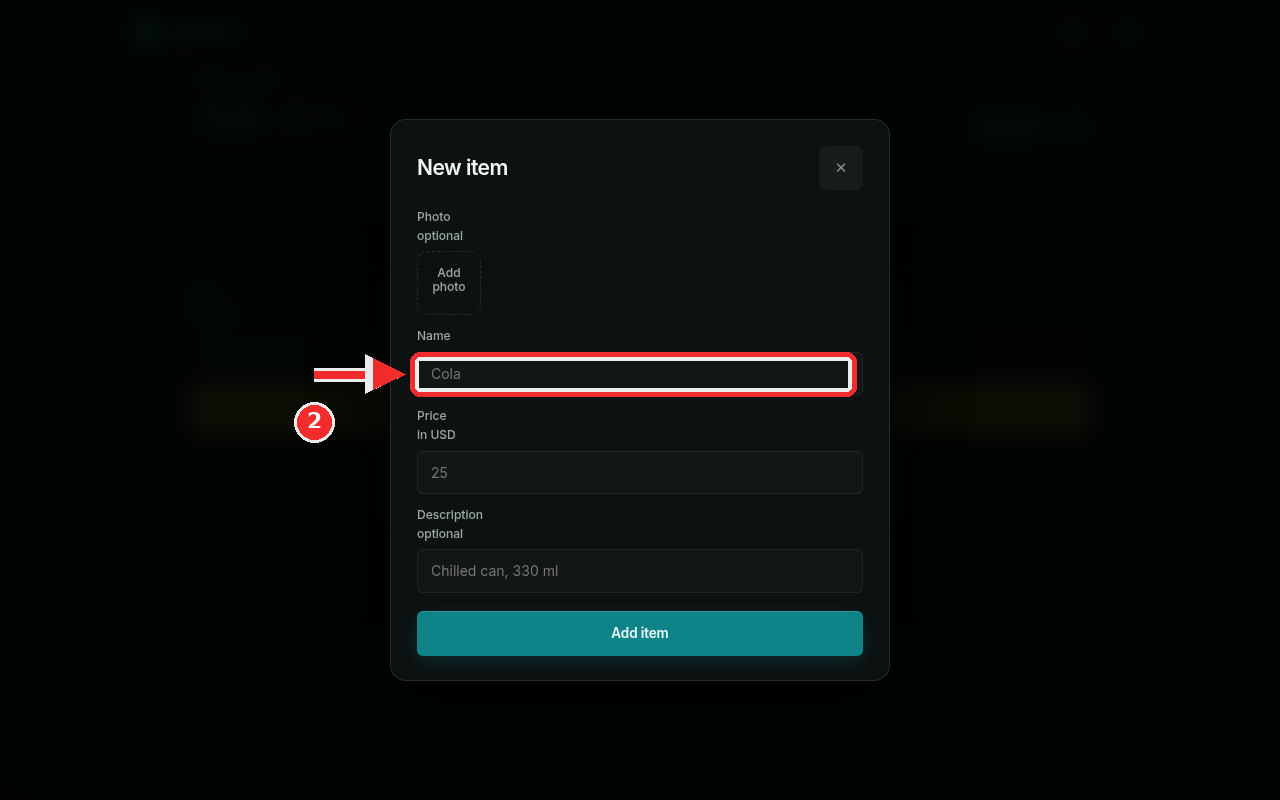
The editor has four fields, top to bottom. Photo is optional: press Add photo to pick an image from your device, and openLN shrinks it in the browser before saving, so the tiles stay quick to load. Name is what appears on the tile, and it is the field the red mark points at, so start here. Price is in your account's currency: the label reads "Price in USD" here because this account is in US dollars. Description is optional and shows under the price on the tile, which is handy for a size or a short note. Name and Price are the only required fields; Photo and Description carry an "optional" tag.
Save it: Cola for 25
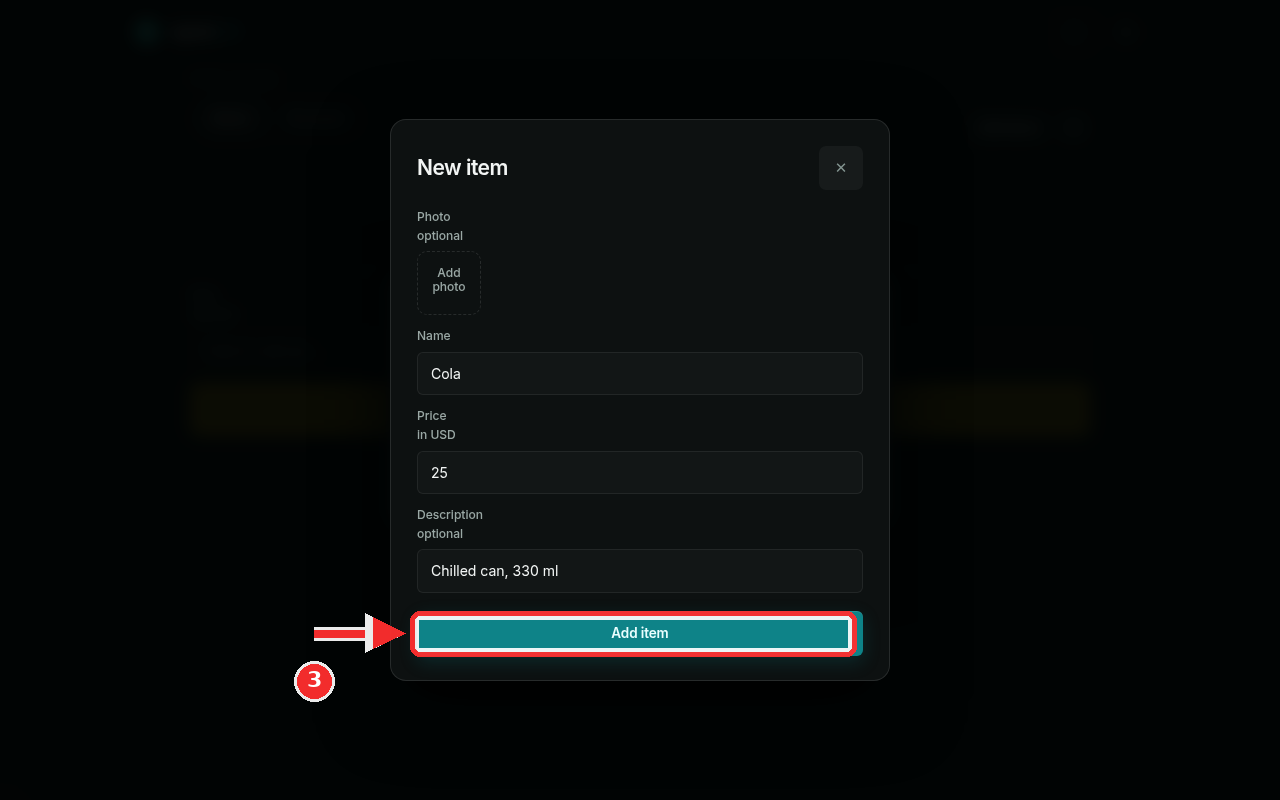
For this example, type Cola in Name, 25 in Price, and Chilled can, 330 ml in Description. Then press Add item at the bottom of the form. openLN saves the item to your account, closes the form, and the list shows the new item right away. When you are editing an item that already exists, the same button reads Save changes. Nothing is charged at any point here: you are only describing what you sell.
Back on the pad, tap the tile to sell
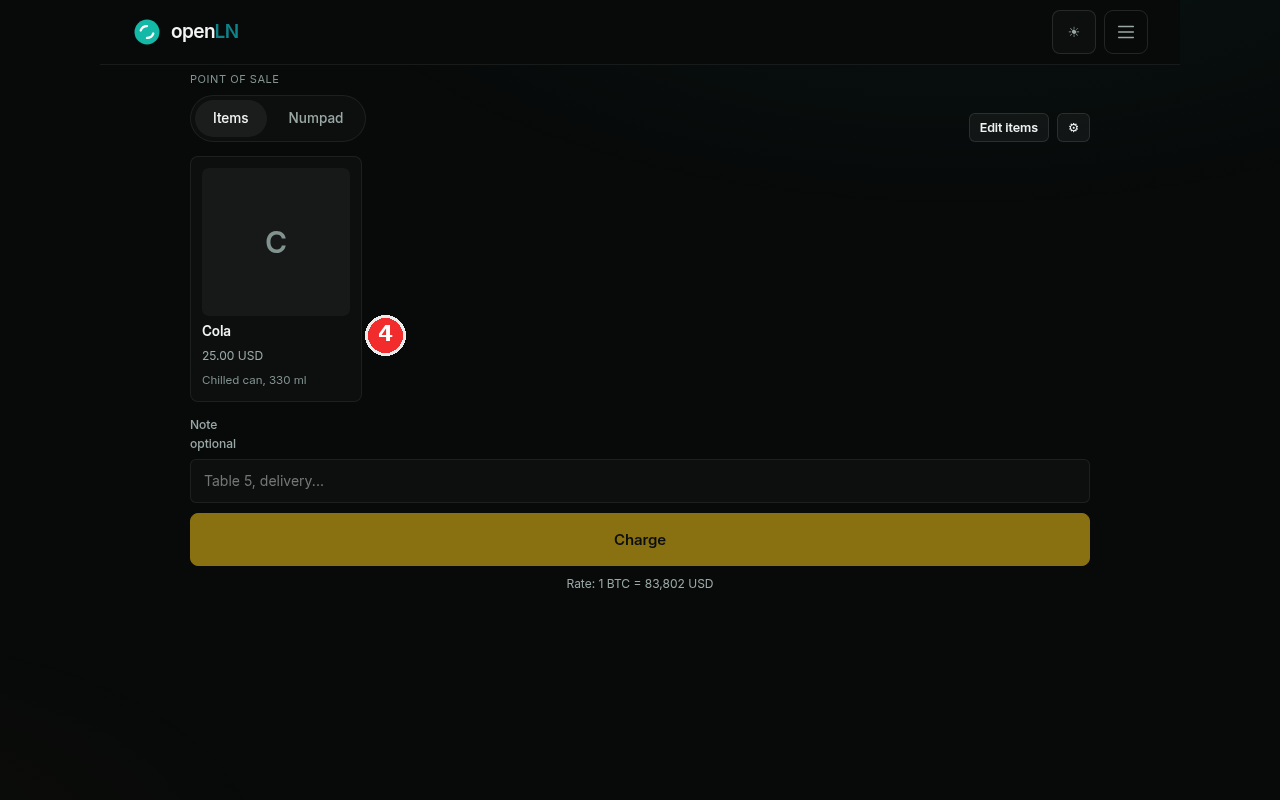
Close the Items dialog with the X in the corner. The Cola tile is now on the POS pad: a letter mark (C) because there is no photo, the name, the price with two decimals (25.00 USD), and the description underneath. Tap the tile at the counter to add a Cola to the sale, and tap it again for a second can. From there the sale finishes the usual way with Charge. The tile is not just for this sale: it is on the pad every time you open the POS.
- Change a price or a name any time. Open Edit items and tap Edit on the item's row. The same editor opens, with Save changes instead of Add item. Update what you need and save; the tiles on the pad update right away. Paid invoices are not affected.
- Removing an item. Open it in the editor and press Delete item at the bottom, then confirm in the dialog (Delete item / Keep item). Paid invoices are not affected.
- Items belong to your account. The list appears on every device you sign in to, and the POS pad on each of them shows the same tiles. openLN never takes custody of your sats; item sales pay straight into the wallet you connected.